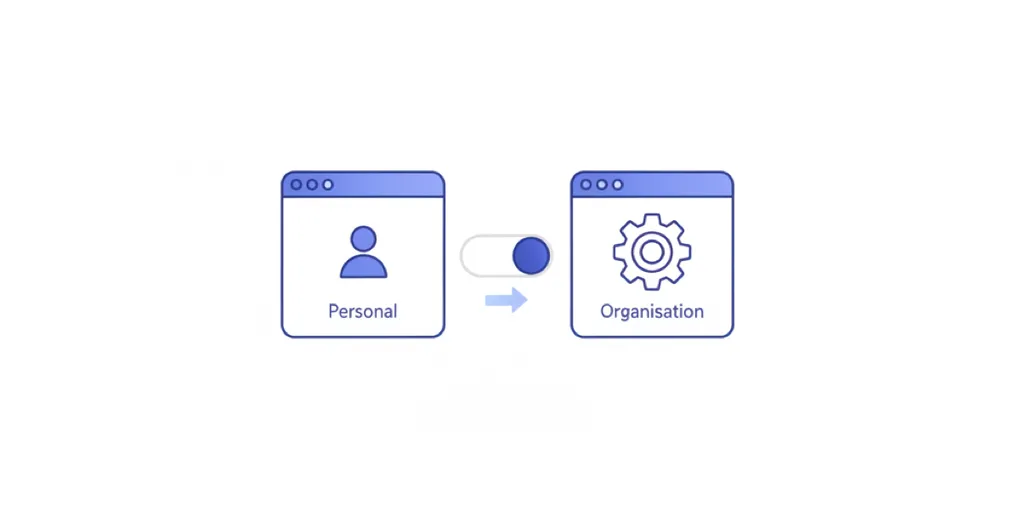
Switching Between Workspaces: Personal vs Organisation
If you’ve joined an organisation in Medtribe, you now have access to two workspaces. This guide explains the difference and how to switch between them.
Your Personal workspace contains legacy content created before you joined an organisation. Your Organisation workspace is where your team collaborates and all new content is created. Use the workspace switcher in the sidebar to move between them.
What is a Workspace?
A workspace is where your events, templates, and other content lives. Think of it as a container for your work.
When you join an organisation, you get access to two workspaces:
| Workspace | What’s in it | Who can see it |
|---|---|---|
| Personal | Content created before joining an organisation | Only you |
| Organisation | Team content and all new content | Everyone on your team |
Personal Workspace
Your personal workspace contains legacy content - events and templates you created before joining an organisation.
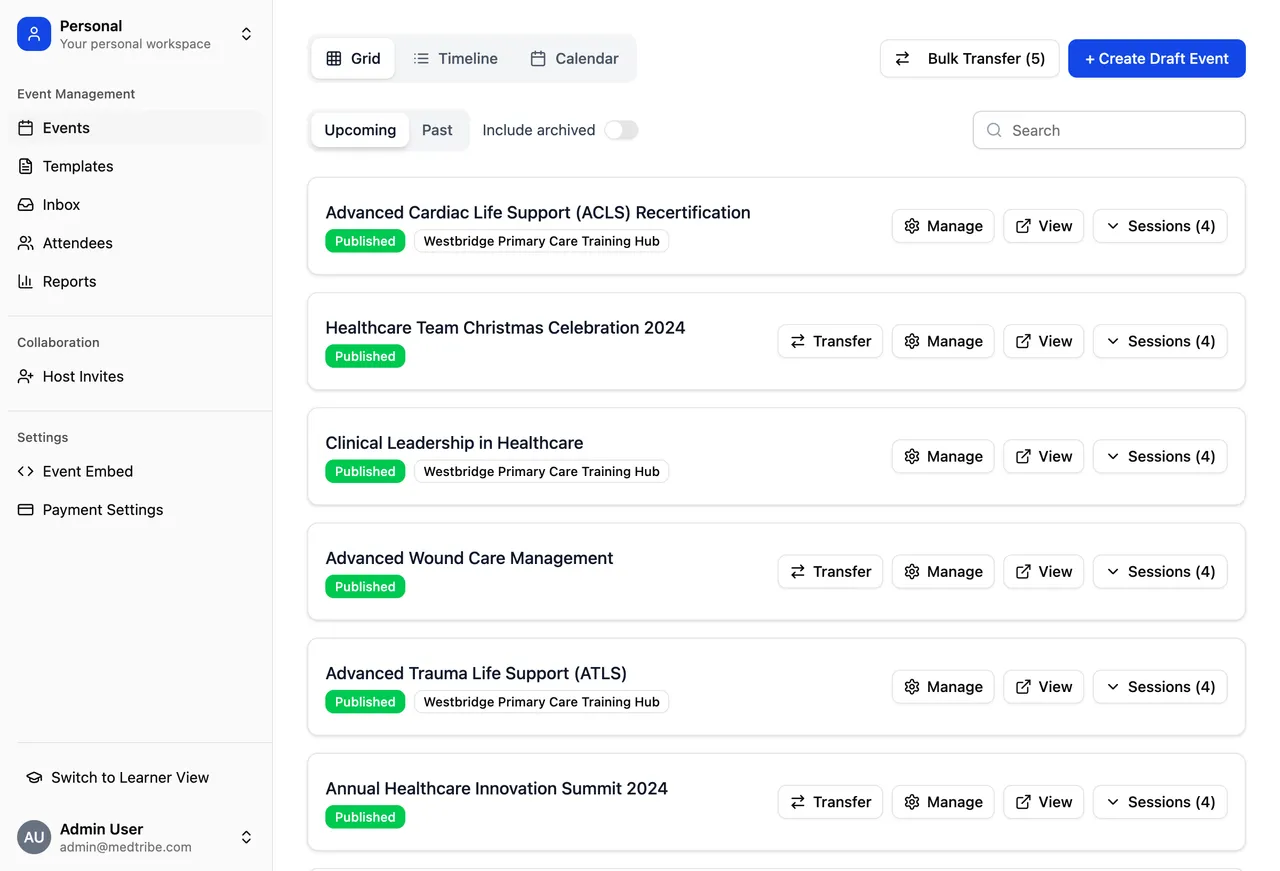
Key Points About Personal Workspace
- Only you can see it - Personal content is private to you
- Legacy content only - You cannot create new events or templates here
- Transfer available - You can move content to your organisation using the Transfer button
- Will become less relevant - As you transfer content, this workspace empties out
When Medtribe introduced organisations, we needed somewhere for your existing content to live. Rather than automatically moving everything, we kept it in your personal workspace so you can decide what to transfer and when.
Organisation Workspace
Your organisation workspace is your team’s shared space. This is where collaboration happens.
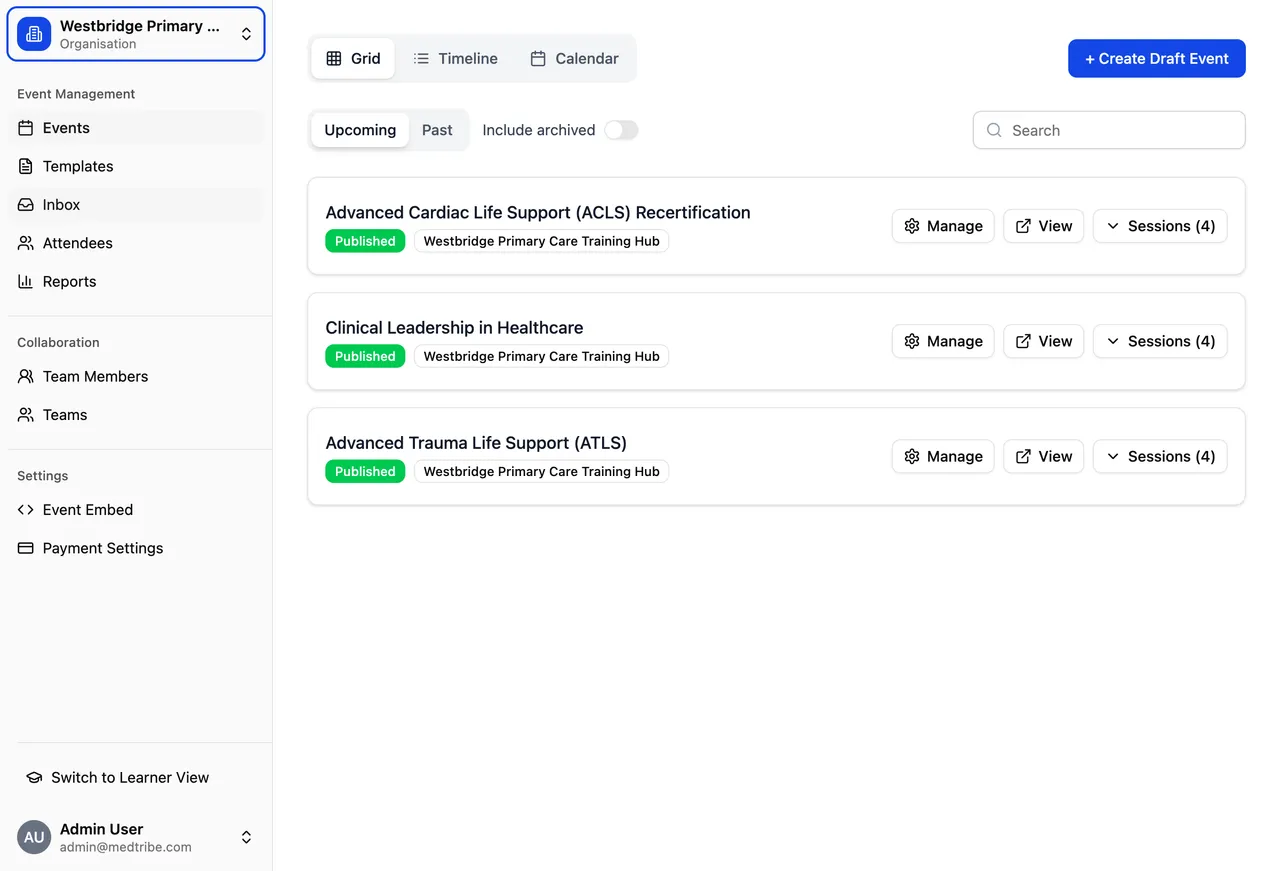
Key Points About Organisation Workspace
- Everyone can see it - All team members have access to everything
- All new content goes here - Events and templates you create belong to the team
- Team-owned - If someone leaves, the content stays with the organisation
- This is your primary workspace - You’ll spend most of your time here
Content in your organisation belongs to the team, not individuals. This means if a colleague goes on leave, moves to a different role, or leaves the organisation, their events and templates remain accessible to everyone else.
How to Switch Workspaces
The workspace switcher is at the top of your sidebar in the Educator section.
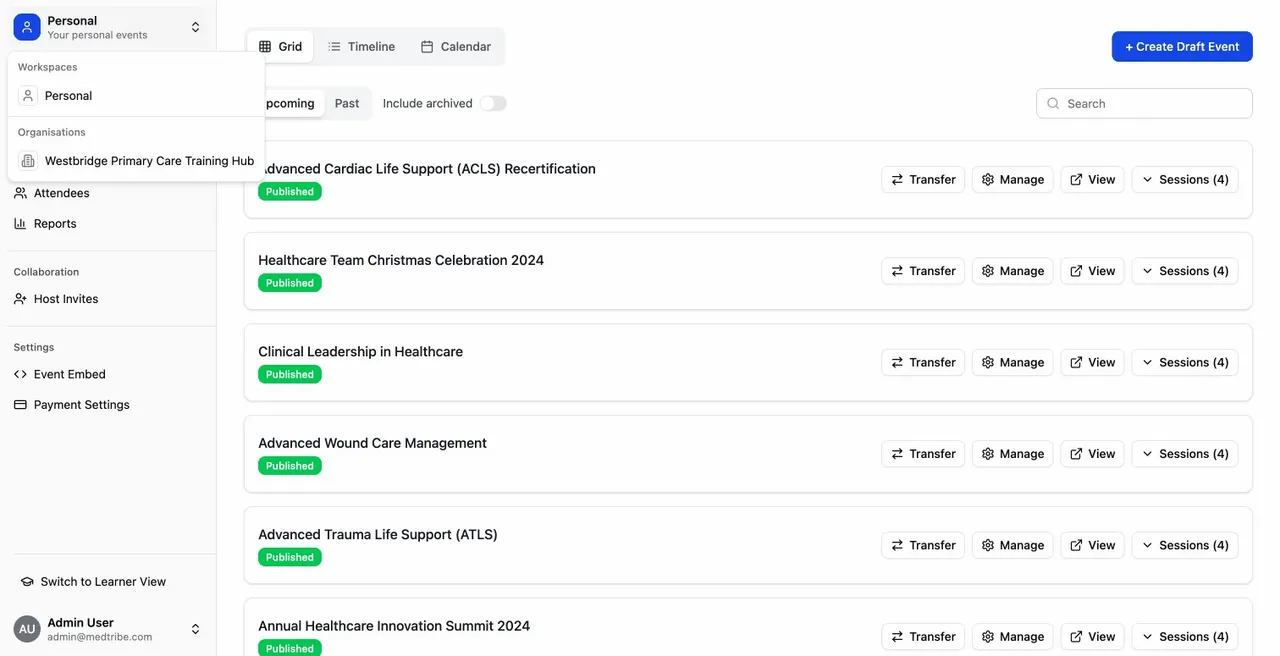
Steps to Switch
- Look at the top of your sidebar - you’ll see your current workspace name
- Click on the workspace name
- A dropdown appears with your available workspaces
- Select the workspace you want to view
- The page updates to show that workspace’s content
Always glance at the workspace switcher to confirm which workspace you’re viewing. This helps avoid confusion about where your content is.
Where Does New Content Go?
All new events and templates are created in your organisation workspace.
When you click “Create Event” or “Create Template”, the content is automatically created in your organisation. This ensures:
- Your team can see and help manage it
- The content stays with the team if you leave
- Collaboration is seamless from the start
You cannot create new events or templates in your personal workspace. This is by design - going forward, all content belongs to your team.
When to Use Each Workspace
| Task | Which Workspace |
|---|---|
| Create new events | Organisation |
| Create new templates | Organisation |
| View team events | Organisation |
| Collaborate with colleagues | Organisation |
| Find old events from before joining | Personal |
| Transfer content to your team | Personal |
| View legacy templates | Personal |
Common Questions
Why can't I see my events?
You’re probably viewing the wrong workspace. This is the most common issue when content seems to disappear.
Check these things:
- Look at the workspace switcher (top of sidebar)
- If it says “Personal”, your team events are in your Organisation workspace
- If it says your organisation name, your old events might be in Personal workspace
- Switch to the other workspace and check again
If you still can’t find them:
- Events created before joining an organisation are in Personal
- Events created after joining are in your Organisation
- Contact support if you’re still stuck
Where did my content go?
Your content hasn’t disappeared - it’s in one of your workspaces.
When organisations launched, your existing content stayed exactly where it was - in what’s now called your Personal workspace. Nothing was moved or deleted.
To find it:
- Switch to your Personal workspace
- Your pre-organisation content will be there
- Use Transfer to move it to your organisation when ready
Can I move content back from my organisation to personal?
No. Transfers are one-way only.
Once content is in your organisation, it belongs to the team and cannot be moved back to a personal workspace. This ensures team content stays with the team.
If you transferred something by mistake, contact support@medtribe.com and we can help.
I belong to multiple organisations. How does that work?
You’ll see all your organisations in the workspace switcher.
The dropdown will show:
- Personal (your legacy content)
- Organisation A
- Organisation B
- (and so on)
Each organisation is completely separate. Content in one organisation cannot be seen by members of another.
Why do I need to transfer content? Why wasn't it automatic?
We wanted to give you control.
Automatic transfers could have caused problems:
- You might belong to multiple organisations
- Some content might be personal and not meant for your team
- You might want to review what gets shared
By requiring manual transfer, you decide exactly what your team should have access to.
Can team members see my personal workspace?
No. Personal workspace content is private to you.
Only you can see what’s in your personal workspace. Your colleagues cannot access it. This is why transferring is important - until you transfer, your team cannot see or help manage your legacy content.
What happens to personal workspace if I leave my organisation?
Your personal workspace stays with you.
If you leave an organisation:
- Content in your Personal workspace remains yours
- Content in the organisation stays with the team
- You lose access to the organisation workspace
This is another reason to transfer important content - it ensures continuity for your team if you move on.
Quick Reference
Workspace Comparison
| Feature | Personal Workspace | Organisation Workspace |
|---|---|---|
| Content type | Legacy (pre-organisation) | Current and new |
| Visibility | Only you | All team members |
| Create new events | No | Yes |
| Create new templates | No | Yes |
| Content ownership | You personally | The team |
| If you leave | Stays with you | Stays with team |
| Transfer from | Yes (to organisation) | No |
| Transfer to | No | Yes (from personal) |
Related Guides
- Understanding Organisations and Teams - Full overview of how organisations work
- How to Transfer Events and Templates - Step-by-step transfer guide
- How to Add People to Your Organisation - Growing your team
Need Help?
Contact Support:
- Email: support@medtribe.com
- Book a demo
Common requests we can help with:
- Finding missing content
- Understanding workspace structure
- Help with transfers
- Questions about what goes where
Questions? Reply to any Medtribe email or reach out at support@medtribe.com.