How to Transfer Events and Templates to Your Organisation
When you join an organisation, your existing events and templates stay in your Personal workspace. To share them with your team, you need to transfer them. This guide shows you how.
Transfer moves events and templates from your personal workspace to your organisation. Once transferred, your entire team can see and manage them. Use bulk transfer to move multiple items at once.
Why Transfer?
When Medtribe introduced organisations, we needed a way to handle content created before you joined a team. Here’s how it works:
| Personal Workspace | Organisation Workspace |
|---|---|
| Events created before joining an organisation | All new events created after joining |
| Only you can see them | Everyone on your team can see them |
| Your personal content | Team-owned content |
Transferring bridges these two worlds by moving your personal content into your organisation.
What Can Be Transferred?
You can transfer:
- Events - Training courses, workshops, conferences
- Email Templates - Custom email designs you’ve created
- Booking Form Templates - Registration form templates
- Application Form Templates - Application and screening forms
- Survey Templates - Feedback and evaluation forms
- Certificate Templates - Certificate designs
Don’t forget your templates. Transferring them means your whole team can use them when creating new events, saving everyone time.
Step-by-Step: Transfer a Single Item
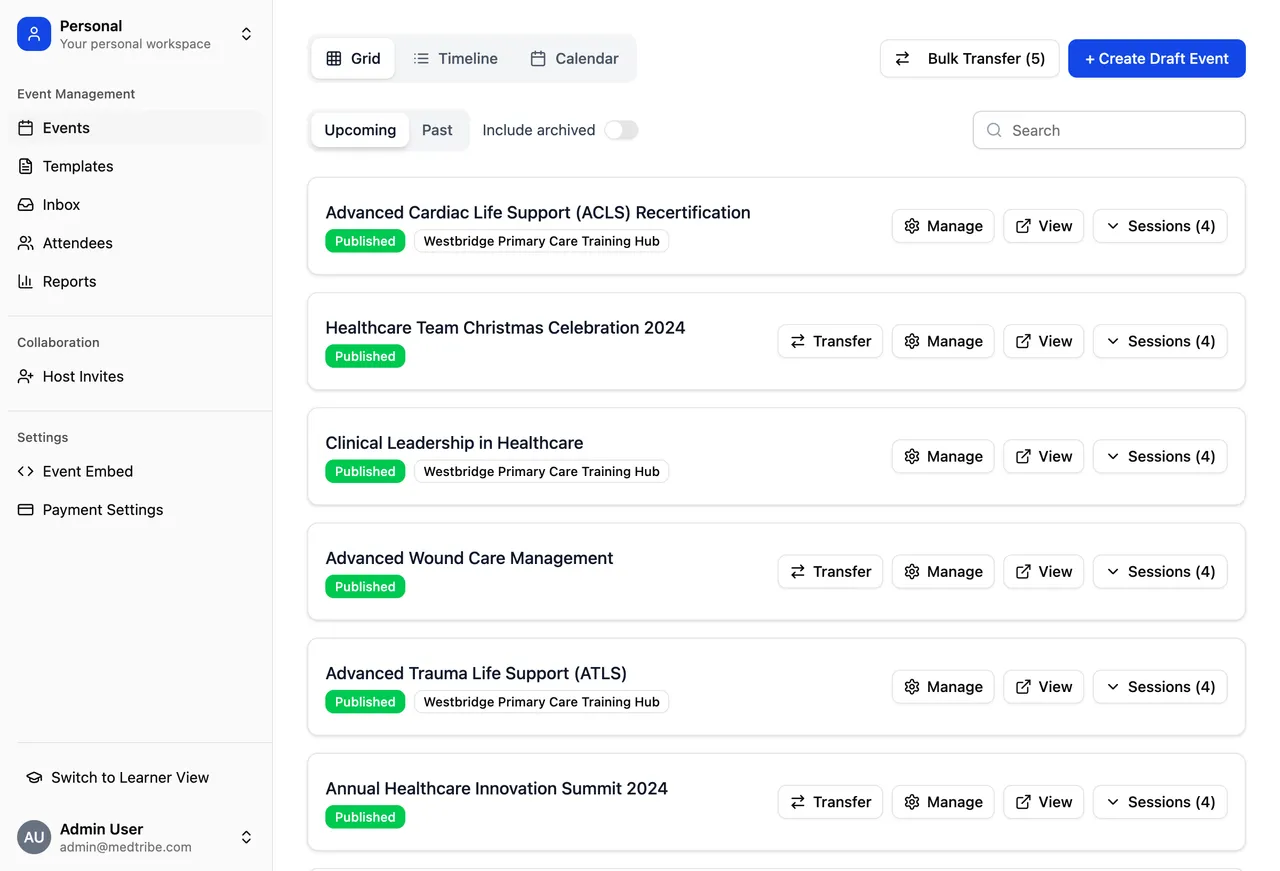
1. Switch to Your Personal Workspace
First, make sure you’re viewing your personal workspace:
- Look at the workspace switcher at the top of your sidebar
- Click on it if you’re currently viewing your organisation
- Select Personal from the dropdown
You should now see your personal events and templates.
2. Find the Item to Transfer
Navigate to the item you want to transfer:
- For events: Go to Events in the sidebar
- For templates: Go to the relevant template section (Email Templates, etc.)
Look for items with the Transfer button visible.
3. Click Transfer
- Click the Transfer button on the item
- Select which organisation to transfer to (if you belong to multiple)
- Confirm the transfer
You can transfer content between any workspaces you’re a member of — Personal to Team, or Team to Team. Just select the items, click Transfer, and choose your destination.
4. Verify the Transfer
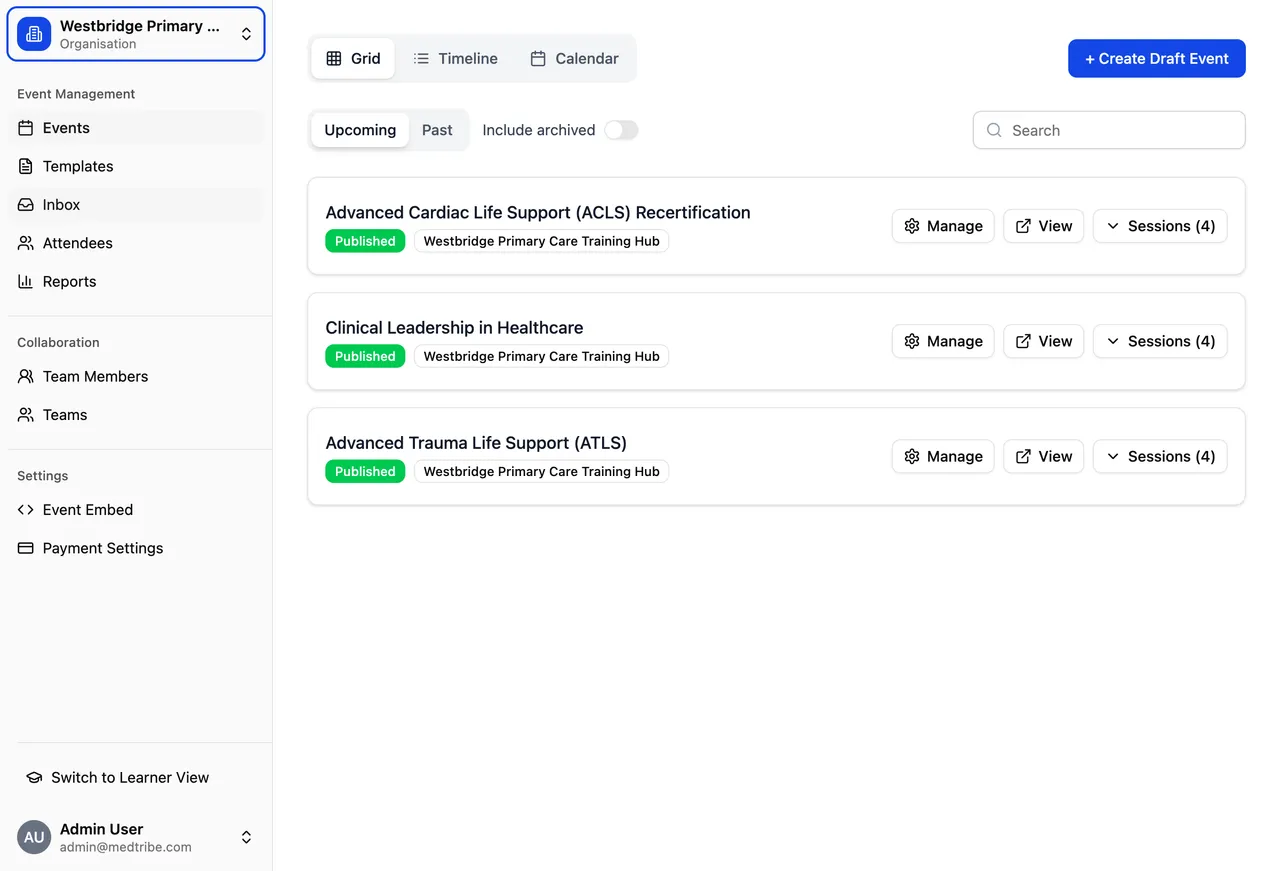
- Switch to your Organisation workspace using the workspace switcher
- Navigate to the same section (Events, Templates, etc.)
- Your transferred item should now appear there
Step-by-Step: Bulk Transfer Multiple Items
If you have many items to transfer, use bulk transfer to save time.
1. Go to Your Personal Workspace
Switch to your Personal workspace using the workspace switcher.
2. Select Multiple Items
- Navigate to Events or the template section you want to transfer from
- Look for checkboxes next to each item
- Click the checkboxes to select all items you want to transfer
If you want to transfer everything, look for a “Select All” option at the top of the list.
3. Click Transfer Selected
- With your items selected, click the Transfer Selected button
- Choose the target organisation
- Review what you’re transferring
- Confirm the bulk transfer
4. Wait for the Process to Complete
The transfer processes each item. Once complete, all selected items will be in your organisation workspace.
What Happens When You Transfer?
Understanding the transfer process helps you make good decisions:
For Events
| Before Transfer | After Transfer |
|---|---|
| Only you can see the event | All team members can see it |
| Only you can edit details | All team members can edit |
| Bookings stay with the event | Bookings remain intact |
| Event history preserved | Full history maintained |
For Templates
| Before Transfer | After Transfer |
|---|---|
| Only you can use the template | Team can use it for new events |
| Your personal template library | Part of team template library |
| Only you can edit | Team can edit and improve |
Transferring preserves everything: bookings, attendee data, schedules, settings, and history. The only change is who can access it.
Common Questions
Should I transfer all my events?
We recommend transferring everything you want to continue using. Since new content can only be created within your organisation, your personal workspace is for legacy content only.
Transfer if:
- You use the event or template regularly
- Your team should have access
- You want colleagues to help manage it
- You want the team to have records
Keep in personal workspace if:
- It’s a personal test event
- You no longer need it
- It contains sensitive personal content
What if I transfer to the wrong organisation?
Contact Medtribe support at support@medtribe.com. We can help move content between organisations if needed.
Since transfers are one-way, double-check you’ve selected the correct organisation before confirming.
Will my bookings and attendees transfer too?
Yes. All event data transfers with the event:
- All bookings and attendees
- Payment records
- Schedules and sessions
- Email history
- Form responses
- Certificates issued
The event moves as a complete package. Nothing is lost.
Can I transfer just some events and keep others personal?
Yes. You have complete control over what to transfer. Transfer only the items you want your team to access. Keep personal or test events in your personal workspace.
I belong to multiple organisations. Can I choose where to transfer?
Yes. When you click Transfer, you’ll see a dropdown to select which organisation receives the item. Choose carefully - transfers are permanent.
What about events with future bookings?
Transfer them. Future bookings, attendee communications, and scheduled emails all continue working normally after transfer. Your attendees won’t notice any difference.
How long does bulk transfer take?
Bulk transfer processes items one at a time but is quite fast. A batch of 20-30 items typically completes in under a minute. You’ll see a confirmation when complete.
Best Practices
Before You Transfer
- Review what you’re transferring - Make sure you want your team to have access
- Check the target organisation - Confirm you’re sending to the right place
- Consider templates too - Don’t forget to transfer useful templates
After You Transfer
- Verify the transfer - Switch to your organisation workspace and confirm items appear
- Inform your team - Let colleagues know new content is available
- Clean up personal workspace - Archive or delete items you no longer need
Recommended Transfer Order
- Templates first - Transfer templates so team members can use them immediately
- Active events - Transfer events with upcoming sessions
- Historical events - Transfer past events for record-keeping
- Test events - Leave test/draft events in personal workspace
Quick Reference
What Can Be Transferred
| Item Type | Can Transfer? | Notes |
|---|---|---|
| Events | Yes | Includes all bookings, schedules, history |
| Email Templates | Yes | Available to whole team after transfer |
| Booking Form Templates | Yes | Team can use for new events |
| Application Form Templates | Yes | Team can use for new events |
| Survey Templates | Yes | Team can use for new events |
| Certificate Templates | Yes | Team can use for new events |
Need Help?
Contact Support:
- Email: support@medtribe.com
- Book a demo
Common requests we can help with:
- Moving content between organisations
- Questions about what transfers
- Help with bulk transfers
- Training for your team
Questions? Reply to any Medtribe email or reach out at support@medtribe.com.