
How to Add People to Your Organisation or Team
Growing your team in Medtribe is straightforward. This guide covers all the ways to add people to your organisation or team.
You can add people by sending email invites or by approving their requests to join. Both methods result in full team membership with access to all your organisation’s events and templates.
Two Ways to Add Team Members
There are two paths to team membership:
| Method | How it works | Best for |
|---|---|---|
| Email Invite | You send an invite, they accept | When you know who should join |
| Request to Join | They request, you approve | When colleagues find your organisation themselves |
Both methods end the same way: the person becomes a full team member with access to everything in your organisation.
Method 1: Invite by Email
The quickest way to add someone is to send them an email invite directly.
How to Send an Invite
- Go to Team Members in your organisation
- Click Invite Team Members
- Enter their email address (you can add multiple at once)
- Click Send Invites
The person receives an email with a link to accept. Once they click accept, they’re automatically added to your team.
You can invite several people at once. Just enter each email address and we’ll send individual invites to everyone.
What Happens After You Invite
- Pending Invite - The invite appears in your Pending Invites tab
- Email Sent - They receive an email with an accept link
- They Accept - One click and they’re in
- Full Access - They can now see all your organisation’s events and templates
Managing Pending Invites
Invites expire after 2 weeks. If someone hasn’t accepted yet, you have options:
- Resend - Send a fresh email with a new 2-week window
- Revoke - Cancel the invite entirely
To manage invites:
- Go to Team Members
- Click the Pending Invites tab
- Find the invite and click the menu (three dots)
- Choose Resend or Revoke
Check spam folders first. If they still can’t find it, use the Resend option to send a fresh invite.
Method 2: Approve a Request
Sometimes colleagues will find your organisation and request to join. Here’s how to handle those requests.
How Requests Work
- A colleague searches for your organisation when setting up their account
- They click Request to Join
- You receive a notification
- An existing member approves or rejects the request
Approving Requests
- Go to Team Members
- Click the Pending Requests tab
- Find the request and click Approve
- They’re now a team member
When you approve someone, they receive an email confirming they’ve been added to the team.
Rejecting Requests
If someone requests to join the wrong organisation:
- Go to Team Members > Pending Requests
- Click the menu (three dots) next to their request
- Click Reject
- Optionally add a reason (they’ll see this in their notification)
If someone joins the wrong team, let them know which organisation they should be looking for. You can include this in the rejection reason.
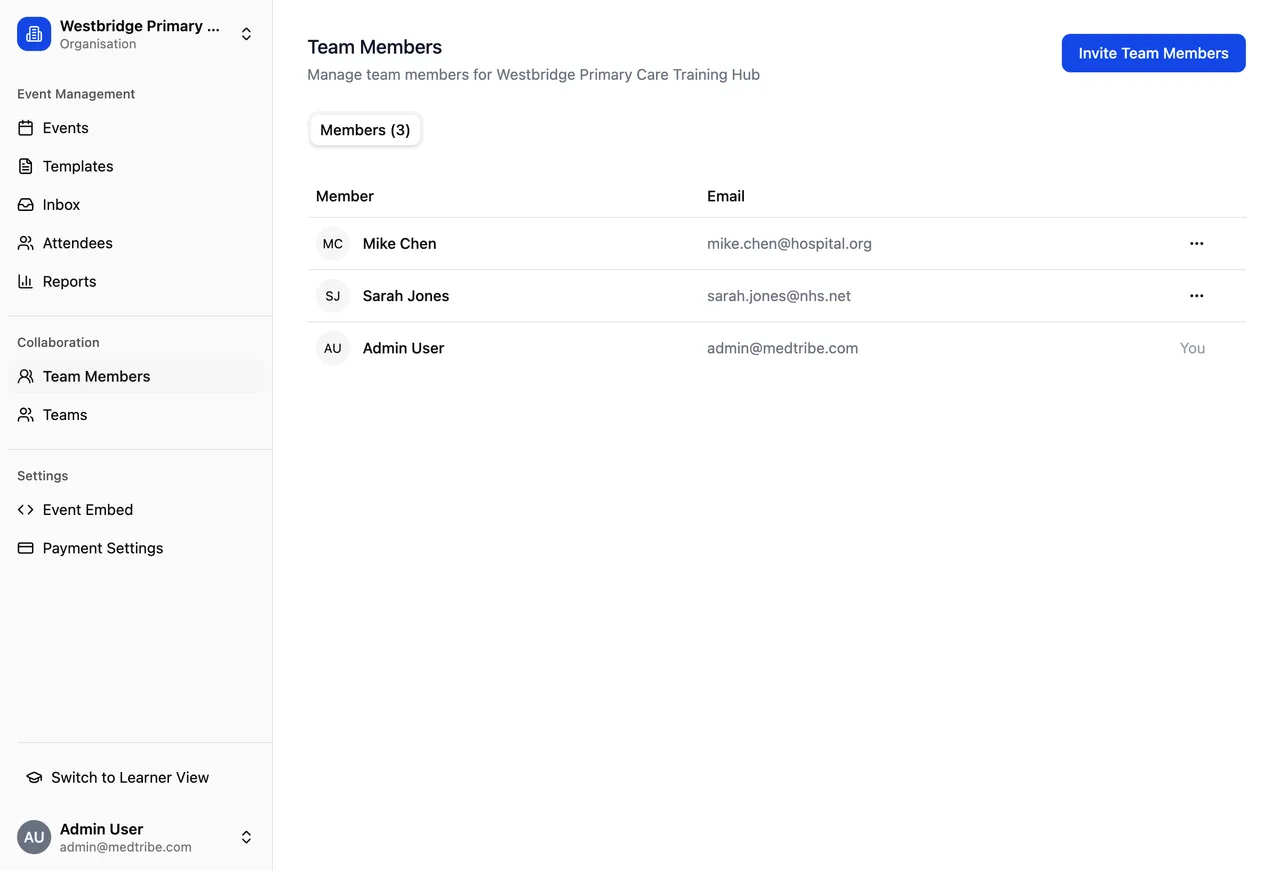
The Team Members Page
Your Team Members page has four tabs to help you manage membership:
| Tab | What it shows |
|---|---|
| Members | Everyone currently in your organisation |
| Pending Requests | People who’ve requested to join |
| Pending Invites | Invites you’ve sent that haven’t been accepted |
| Rejected | Requests you’ve declined |
Removing Team Members
If someone leaves or was added by mistake:
- Go to Team Members
- Find the person in the Members tab
- Click the menu (three dots)
- Click Remove
- Confirm the removal
They lose access to all organisation events and templates immediately. They’ll receive a notification that they’ve been removed. Their personal workspace (if they have one) is unaffected.
Common Questions
Can someone belong to multiple organisations?
Yes. Anyone can be a member of multiple organisations and switch between them using the workspace switcher. For example:
- Consultants who work with different trusts
- Educators who support multiple training hubs
- Staff who work across departments
These are just common examples - the feature is available to everyone regardless of role. Each organisation’s content remains separate, so being in one doesn’t give you access to another.
What access do team members get?
Full access to everything in the organisation:
- View all events
- Create new events
- Edit existing events
- Use all templates
- Create new templates
Currently all team members have equal access. More granular permissions are coming soon.
Can I bulk invite a list of email addresses?
Yes. When you click Invite Team Members, you can enter multiple email addresses. Each person receives their own invite email.
What if someone's invite expired?
Just resend it. Go to Pending Invites, find their invite, and click Resend. They’ll get a fresh email with a new 2-week acceptance window.
Can I see who invited someone?
Yes. The Pending Invites tab shows who sent each invite. Once someone joins, you can see who invited them in the Members list.
What's the difference between organisation and team?
Organisations are the top-level workspace (e.g., your trust, training hub, or department).
Teams are groups within an organisation (e.g., specialty teams or project groups within your organisation).
Both work the same way for adding members - invites and requests function identically.
Quick Reference
Need Help?
Contact Support:
- Email: support@medtribe.com
- Book a demo
Common requests we can help with:
- Moving members between organisations
- Setting up your team structure
- Questions about permissions
- Training sessions for administrators
Questions? Reply to any Medtribe email or reach out at support@medtribe.com.