Working with Teams Inside Your Organisation
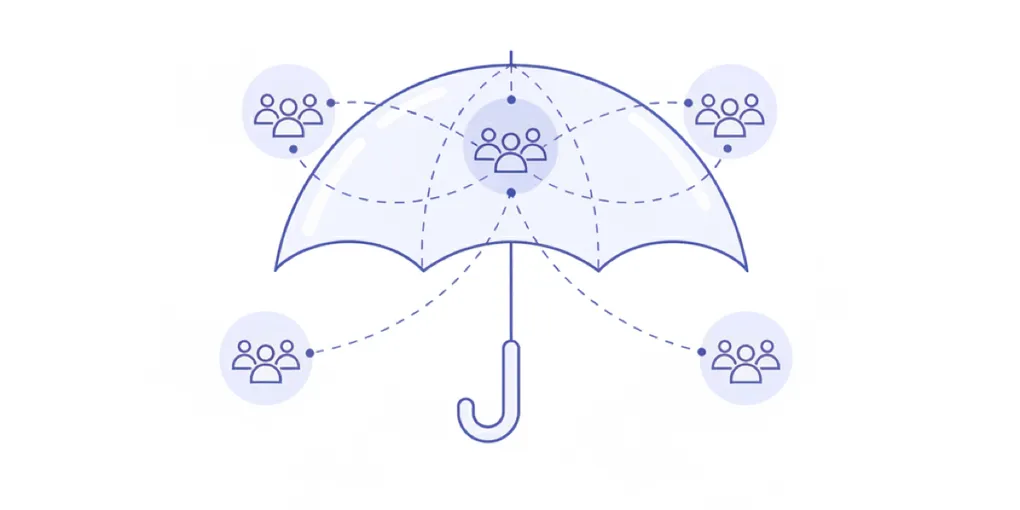
Organisations work well for many teams, but sometimes you need more structure. Teams let you create sub-groups within your organisation for departments, specialties, or project groups.
Teams are sub-groups within your organisation. Create a team for each department or specialty. Team members can switch between the parent organisation and their team workspace.
What Are Teams?
Teams are child organisations that sit underneath your main organisation. They let you group people and events by department, specialty, or function.
Example Structures
Here are some examples of how organisations might structure their teams:
| Organisation Type | Example Teams |
|---|---|
| NHS Trust | Paediatrics Team, Emergency Medicine Team, Simulation Centre |
| Training Hub | Primary Care Educators, Practice Nurse Trainers |
| Deanery | Foundation Programme Team, GP Training Team |
The organisation structures above are illustrative examples showing different ways teams can be organised. Your team names should reflect your actual departments, specialties, or project groups.
Each team operates like a mini-organisation with its own members, events, and templates, while still being part of the parent organisation.
How Teams Relate to Organisations
Think of it as a hierarchy:
Your Organisation
├── Department A Team
├── Department B Team
└── Specialist Unit
People can be members of:
- Just the parent organisation
- Just a team
- Both the parent organisation and one or more teams
Behind the scenes, teams are full organisations with all the same features. They just have a parent-child relationship with your main organisation.
When to Use Teams vs Just the Organisation
Not every organisation needs teams. Here’s how to decide:
Use Just the Organisation When
- Your team is small (under 10-15 people)
- Everyone works on the same events
- You don’t need to separate content by department
- Simple is better for your workflow
Use Teams When
- You have distinct departments or specialties
- Different groups run different types of events
- You want to separate events and templates by team
- People only need to see their department’s content
- You want clearer ownership of events
Ask yourself: “Do my colleagues need to see everything, or would it be clearer if each department had their own space?” If the latter, teams are for you.
How to Create a Team
Creating a team is straightforward. You need to be a member of the parent organisation first.
Step-by-Step
- Go to the Educator section
- Make sure you’re viewing your organisation workspace (check the workspace switcher)
- Click Teams in the sidebar
- Click Create Team
- Enter the team name (be specific, e.g., “Paediatrics Team” not just “Paediatrics”)
- Click Create
Your team is now created and you’re automatically added as a member.
Use clear, descriptive names that make it obvious what the team is for. Include “Team” in the name if it helps clarify (e.g., “Simulation Team” rather than just “Simulation”).
What Happens After Creating
- The team appears in your Teams list
- You can switch to the team’s workspace using the workspace switcher
- Other organisation members can see the team and request to join
- The team has its own events, templates, and member list
How to Join a Team
If a team already exists in your organisation, you can request to join it.
Joining a Team You Can See
- Go to Teams in the sidebar
- Find the team you want to join
- Click Join Team
- Confirm your request
Joining a team requires approval from an existing team member. You’ll receive a notification once your request is approved.
Accepting a Team Invite
If someone has invited you to a team:
- Go to Teams in the sidebar
- Look for teams with an “Invited” badge
- Click Accept Invite
- You’re now a member of the team
Your Membership Status
The Teams page shows your relationship to each team:
| Status | What It Means |
|---|---|
| Member | You’re in the team and can access its workspace |
| Pending | You’ve requested to join, waiting for approval |
| Invited | You’ve been invited, click Accept to join |
| (No badge) | You’re not a member, click Join to request access |
Working with Your Team
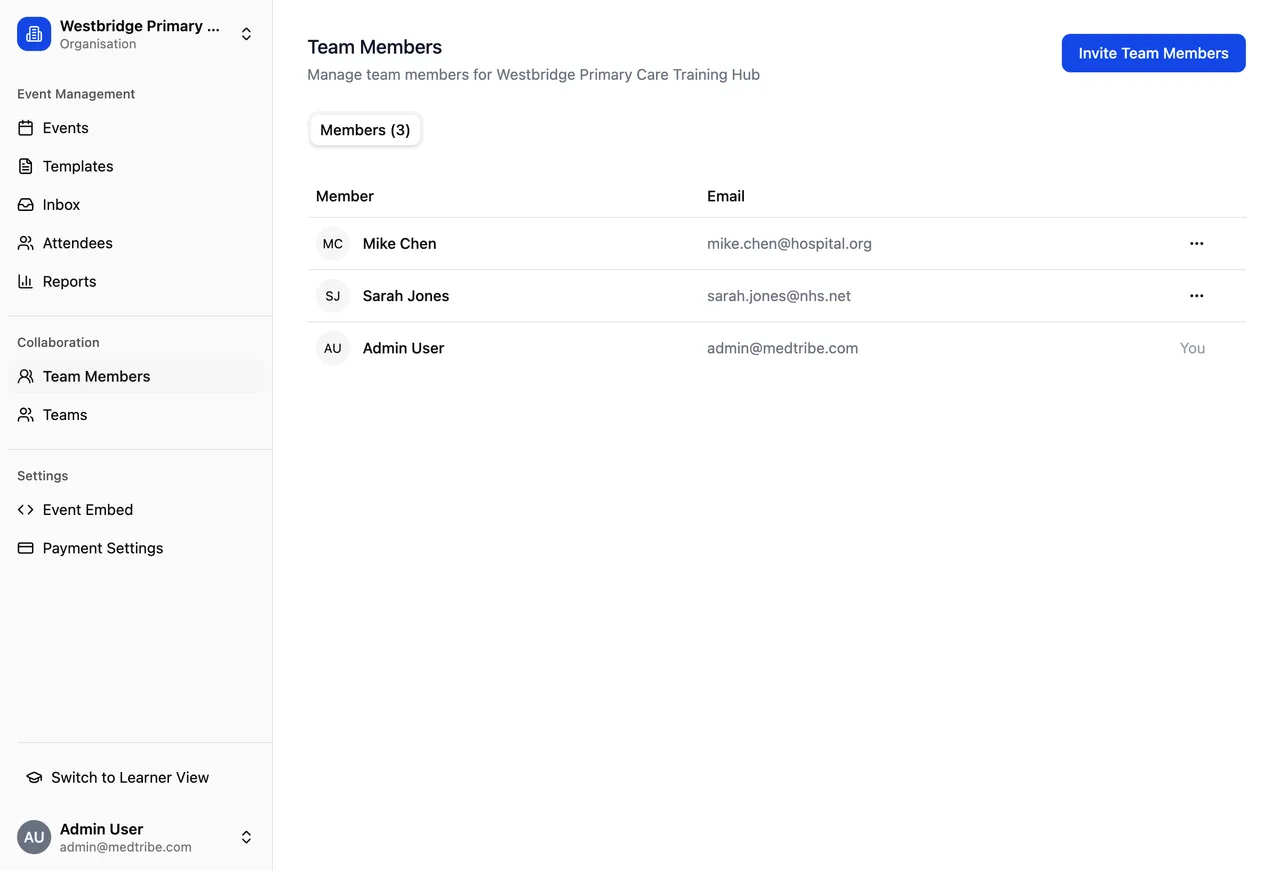
Once you’re a member of a team, you can work within that team’s workspace.
Switching to Your Team Workspace
- Click the workspace switcher at the top of your sidebar
- Select your team from the list
- You’re now viewing that team’s content
What You Can Do in a Team Workspace
- View team events - See only events created within this team
- Create new events - Events you create belong to the team
- Use team templates - Access templates specific to this team
- Manage team members - Add or remove people from the team
Switching Back to the Organisation
Use the workspace switcher to switch back to your parent organisation or personal workspace at any time. Your content in each workspace stays separate.
Before creating a new event, check which workspace you’re in. The event will belong to whatever workspace is currently selected.
Common Questions
Can I be in multiple teams?
Yes. You can be a member of as many teams as you need. Use the workspace switcher to move between them.
This is useful if you:
- Support multiple departments
- Work across specialties
- Contribute to different project groups
Can team content be seen by the parent organisation?
No, by default. Each team’s content is private to its members. Being in the parent organisation doesn’t give you access to team content unless you’re also a member of that team.
This ensures departments can work independently without their events appearing in other teams’ views.
Who can create teams?
Currently, any member of an organisation can create teams within it. This may change as we develop more granular permissions.
Can I transfer events between teams?
Yes. You can transfer events and templates between any workspaces you’re a member of, including between teams.
How to transfer:
- Select the event(s) or template(s) you want to move
- Click Transfer
- Choose the destination workspace from the list
You’ll see all workspaces you’re a member of as options.
What happens if someone leaves a team?
When someone is removed from a team:
- They lose access to that team’s workspace
- They can no longer see team events or templates
- Their work on team events remains (they don’t disappear)
- They can still be in the parent organisation or other teams
Can I delete a team?
Team deletion is currently handled by support. Contact support@medtribe.com if you need to remove a team. We’ll ensure any important content is preserved or transferred first.
Do teams have their own billing?
No. Teams share the parent organisation’s subscription and tier. Creating teams doesn’t add to your costs or change your plan.
Can teams have their own branding?
Yes, to an extent. Each team can have its own:
- Email templates
- Certificate templates
- Booking form templates
These are separate from the parent organisation’s templates.
Quick Reference
Terminology
| Term | Meaning |
|---|---|
| Organisation | Your main workspace (e.g., your trust or training hub) |
| Team | A sub-group within your organisation (e.g., a department or specialty team) |
| Parent Organisation | The organisation a team belongs to |
| Workspace Switcher | The dropdown at the top of your sidebar for changing workspaces |
| Team Member | Someone who belongs to a specific team |
Example Workflow
Here’s how a typical organisation might set up their teams:
1. Create the Organisation
The administrator creates the main organisation (e.g., your trust or training hub name).
2. Create Teams for Each Department
They create teams for each department that runs training. For example:
- Department A Team
- Department B Team
- Simulation Centre
3. People Join Their Teams
Staff request to join their relevant team(s):
- Educators join their department’s team
- Training coordinators may join multiple teams
- Administrators can access all teams
4. Each Team Creates Their Events
Each team creates events relevant to their specialty:
- Department teams create specialty-specific courses
- Simulation centres create simulation training days
- Cross-functional teams create collaborative workshops
5. Content Stays Organised
- Team members only see their team’s events in their workspace
- Coordinators can switch between team workspaces
- Everyone focuses on their own content without being overwhelmed by other departments
This structure keeps training organised while allowing collaboration where needed.
Need Help?
Contact Support:
- Email: support@medtribe.com
- Book a demo
Common requests we can help with:
- Setting up your team structure
- Moving content between teams
- Advising on the best structure for your organisation
- Training sessions for team leads
Questions? Reply to any Medtribe email or reach out at support@medtribe.com.